Custom Asset Managaement (CAM) Specs
"When specs go wrong, someone needs to catch it!"

Role
Product Design Consultant
Year
2023
Client
Michelin
Industry
Manufraturing
Overview
Designing the Asset Management module for Michelin's Business Tool Network, a web app used by sales reps to configure custom tire specifications for fleet customers, with guardrails that flag when those specs cross a safety line.
Context
A 100-year-old company with a very modern problem
Michelin's sales reps look after tire programs for large fleets, like trucking companies and logistics operators. Each customer gets a Custom Asset Management (CAM) spec: a set of rules that says which tires are approved, how many times a casing can be retreaded, and when it's too old to use safely. Getting these rules wrong can put bad tires on trucks.
The Business Tool Network (BTN) is the internal web app reps use to build and manage these specs. Version 4.x was a full redesign of the Asset Management section. It added more asset types, a new way to create specs, and a check system to catch specs that broke Michelin's own safety limits.
I was the only designer on the project, working directly with the product and engineering teams. No existing design system to borrow from. Just the files, the rules, and a tight deadline.
6
asset types: Drive, Trailer, Trade Trucks, Yard, Default RR, Default RO
4
application categories with different MRT safety maximums
2
creation paths: build fresh or copy from an existing spec
Problem Framing
Before the redesign, reps could build a spec with values that broke Michelin's own safety guidelines and the tool wouldn't say a word. For example, a rep could set a casing age limit of 90 months for line haul, when Michelin's limit is 84. Nobody would know until an audit or something worse.
Reps could enter values that exceeded Michelin's published MRT (Maximum Retread Times) limits with no feedback whatsoever.
If a rep wanted similar settings for a new customer, they rebuilt from scratch. No way to copy or reuse a known-good template.
After saving, there was no persistent indicator that a spec was out of compliance, reps had to remember, and managers reviewing specs had no signal at all.
The crown/shoulder/sidewall repair table had no guidance on what values were acceptable relative to application type.
The tool let reps build specs that Michelin's own rules wouldn't allow. A spec is only as good as the person who last touched it.
Discovery
What does a "bad spec" actually cost?
Discovery had two goals: understand how reps actually use the module day to day, and map out the safety limits that needed to be built into the checks. The Michelin Specifications table became a key reference. It showed exactly what the system needed to enforce.
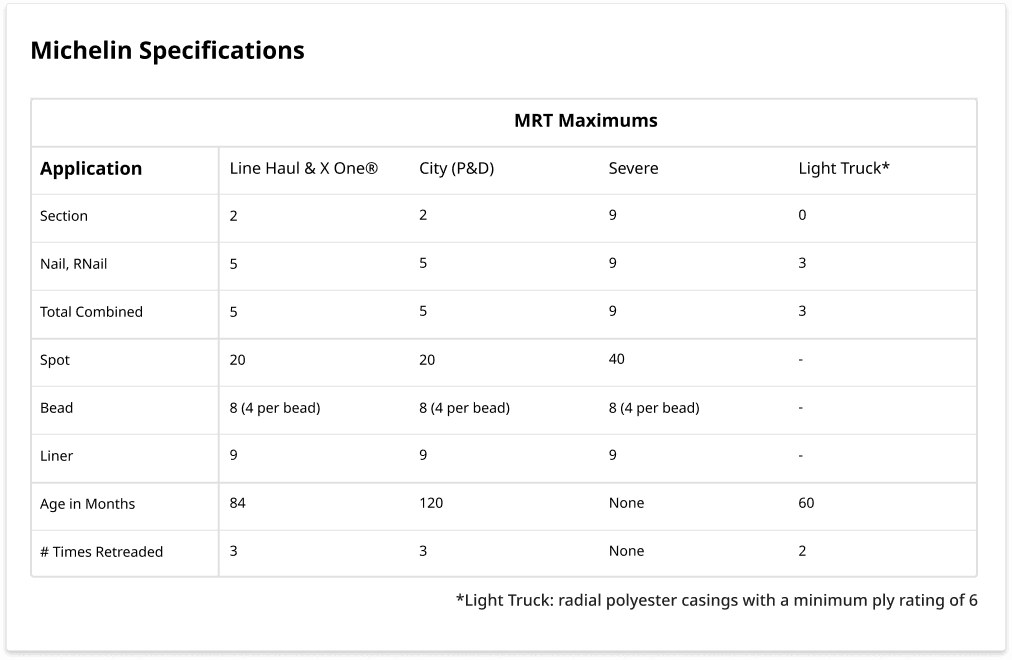
This table defined the validation logic we needed to encode into the UI.
The personas
There were two main user types. Sales reps building specs want to work fast and get it right. They don't want to look up a table every time they type a number. Managers checking saved specs want a quick read on whether something is off, without having to open every record.
We also found that reps had already invented their own workaround for copying specs. They would take a screenshot of a good one and retype it for the next customer. That told us clearly what was missing.
👨🏻💼
Sale reps (primary)
👨🏻💼👨🏻💼
Managers (secondary)
👨🏻💻
Spec review audits
👨🏻🔧
PDF export for customers
Design Process
The tricky part was this: a rep can set values that go over Michelin's limits and still save the spec. They sometimes have a good reason. So blocking the save wasn't the answer. The goal was to make the problem impossible to miss, so no one could later say they didn't see it.
We looked at four options:
Option A · Hard block
Prevent saving when any value exceeds the MRT maximum. Clear, but overrides valid edge cases where Michelin approves exceptions for specific customers.
Option B · Persistent badge (chosen)
Flag the spec with an "Exceeds Michelin Specifications" badge, shown at all times: view mode, edit mode, and the PDF export. Save is never blocked, but the deviation is always visible.
Option C · Inline field error only
Show error text under the specific field. Catches it during entry but doesn't persist after saving. Managers reviewing later wouldn't see it.
Option D · Save-time modal
Warn at save, require acknowledgment. Adds friction on every save, including saves that don't touch the out-of-range field. Too disruptive.
Option B won because it keeps the warning visible no matter who's looking at the spec, and no matter when. We also kept Option C as a companion: the specific field error shows in red while editing, while the badge gives the overall status at the top.
Core Screen
The spec in read mode: status at a glance
The default view shows the full spec. The amber badge sits above the asset name and stays there. Repair limits are laid out in a table with Crown, Shoulder, and Sidewall columns. This is also what gets sent to the customer as a PDF.

Drive spec, read view (exceeds spec)
Edit mode: validation in context
In edit mode, fields turn into inputs. The badge stays at the top. The error message shows right below the field that's over the limit, and it always tells you the exact number you can't go past. If you try to cancel, a pop-up checks that you actually want to leave.

Edit mode with inline validation

Trailer tab with Specification Type: RR badge
Key Decision
The Create New CAM Spec modal: one decision, two paths
When a rep clicks Create, they choose between starting fresh or copying an existing spec. This was new in v4.x, built to replace the screenshot workaround. But the modal had to answer one tricky question: if a rep copies the "X One" spec for a new customer and then changes it, does the original change too?
The answer is no, but we had to make that crystal clear. A rep who assumes the wrong thing could accidentally mess up a spec that other customers rely on.
Path 1: Create new
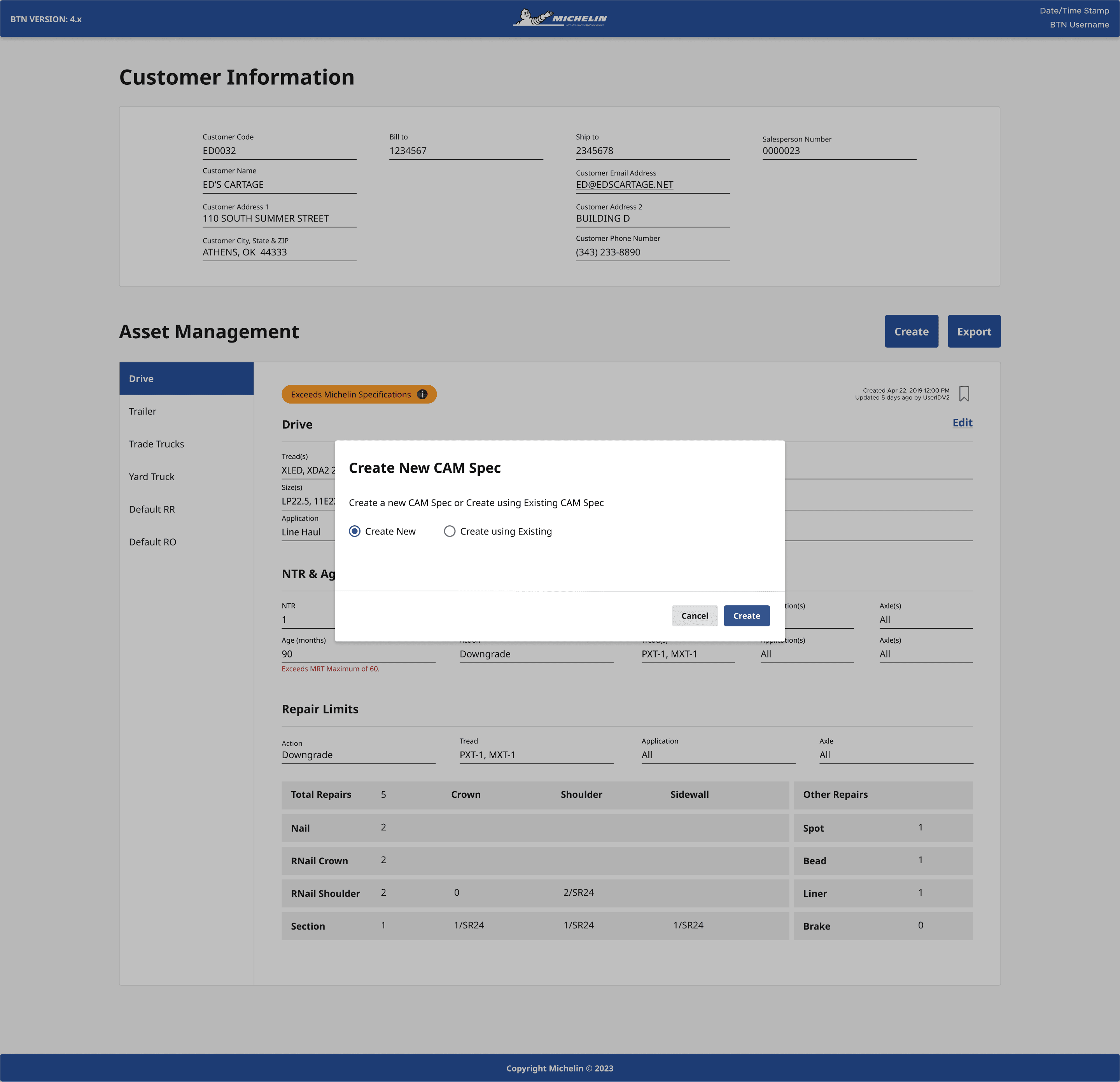
Create New (Create New selected)

New CAM Spec inputs
Actions Combinations
Action = Reject; Disposition = Return, then do not display Disposition field
Action = Reject; Disposition = Scrap, then display Disposition Code field
Action = Downgrade; display 3 fields of Applications, Axle(s), and Tread(s)

Path 2: Create from existing
Once a rep picks a template and clicks Create, a confirmation pop-up spells out what happens next in plain terms: the copy belongs to this customer only. Any changes they make stay here.

Create from Existing (X One selected)

Duplicate X One existing CAM spec
Validation deep dive
Two levels of validation, one consistent language
The badge at the top and the red text under the field both use the same amber color and plain language. They're the same type of alert, just at different levels. One tells you the whole spec has a problem. The other tells you exactly which field and exactly what the limit is.

New CAM Spec form with required field errors

Cancel confirmation modal
Details that matter

Export dropdown (Drive and Trailer selected)

PDF downloading state

Confirm new spec scope (bookmark hint)
PDF export
The printed view carries the same compliance signal
The PDF keeps the same layout and the same status badges. Drive (with the amber "exceeds" badge) and Trailer (with the blue "Specification Type: RR" badge) both appear on the same document. Customers get the full picture.

Confirm new spec scope (bookmark hint)
Outcomes
What changed
Compliance status is always visible, in every mode, including the customer-facing PDF
Reps can clone and modify specs without risking changes to shared templates
Managers can review spec status at a glance without opening each record
Reflection